
Key Takeaways
- Most WooCommerce stores already hold the answer to every pre-sale question. What they're missing is a way to give that answer in the moment a shopper asks, then help them actually buy. That's the job this does.
- It reads your live store, so product, price and stock answers are always current. From there it recommends the right item, both "what goes with this?" pairings and open-ended finds like "something warm for winter," shown as tappable product cards.
- Shoppers can add to cart in one tap, right inside the chat. Straight after, the bot can point out that they're a few dollars from free shipping and suggest an add-on or two from your own cross-sell settings. It also answers "what's on sale?" and can gently win back a shopper who's about to leave.
- Order lookups are locked to the customer's identity. They need both the order number and the billing email on that order, and only non-personal details ever reach the AI.
- When an order needs to come back, the shopper can start a return right in the chat. They give the order number and reason, the bot checks the order is really theirs, and the request lands in your inbox so you can refund from your store. It saves them hunting for a returns email and saves you the back-and-forth.
- The shopping-assistant features are on Pro and Managed, and setup takes about ten minutes with no developer.
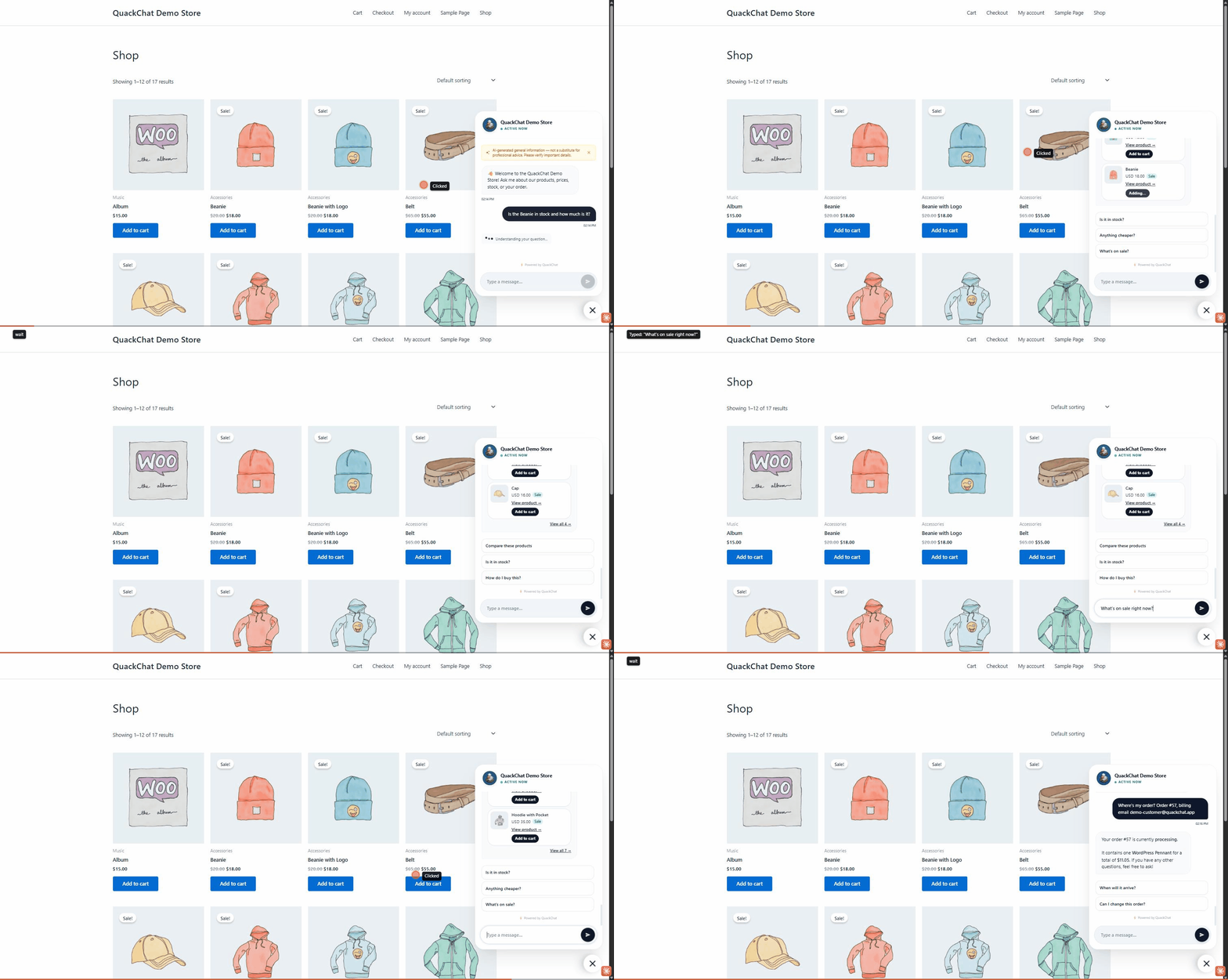
Live on the demo store: a shopper asks whether the Meridian 16L daypack is in stock, adds it to the cart with a single tap, sees a "You're $41.00 away from free shipping" nudge, gets a couple of complementary picks, browses what's on sale, and checks an order's status, all without leaving the chat.
Contents
- Every Unanswered Question Is a Sale You Might Lose
- From Answering Questions to Helping Them Buy
- How Order Lookups Stay Safe
- Setting It Up
- Frequently Asked Questions
Every Unanswered Question Is a Sale You Might Lose
A question with no quick answer usually means a shopper who bounces. People won't sit and wait hours for an email reply before they check out. They just close the tab. And three of the moments that decide a sale are all on the clock:
"Is this actually in stock, and does it come in my size?" A shopper on the fence wants a yes before they buy. The answer is sitting right there in your store, but it isn't in the conversation they're having at 10pm, and there's nobody around to ask.
"What should I get?" Someone browsing without a specific product in mind is one of the easiest sales to make, and one of the easiest to lose. With nothing nudging them toward the right item, no hint of what pairs with it, and no reason to add one more thing, they leave with an empty cart.
"Where's my order?" Once the sale is done, the worry shifts to shipping. These are the emails that stack up in your inbox, each one a ten-second lookup for you and a long wait for them.
Your storefront already holds every one of these answers. The gap that pretty much every store has is turning "the data exists" into "the customer got the answer, and a little help buying, right where they asked."
From Answering Questions to Helping Them Buy
Connect WooCommerce and the bot stops guessing from your marketing copy and starts working your live store like a shop assistant who never sleeps. Here's what it can do:
  A 24/7 SHOP ASSISTANT
  ──────────────────────────────────────────────────

  ANSWER LIVE       Product, price, stock and category
                    questions, answered straight from your
                    WooCommerce catalog in real time.

  RECOMMEND         Complementary picks ("what goes with
                    this?") and need-based finds ("something
                    warm for winter"). A real suggestion,
                    not a keyword dump.

  SHOW IT           Tappable product cards with image, live
                    price and stock, plus a "View all 7" to
                    see the rest.

  ADD TO CART       One tap drops the item into the
                    shopper's own cart, just like the Add
                    to Cart button on the product page.

  NUDGE TO FREE     "You're $12.00 away from free shipping",
  SHIPPING          shown right after they add an item.

  SUGGEST THE       Right after an add, one or two
  ADD-ON            hand-picked companions from your own
                    cross-sell settings, as tappable cards.

  SURFACE SALES     "What's on sale?" returns exactly the
                    items discounted right now, with the
                    old price and the new one.

  WIN BACK CARTS    A shopper about to leave with items in
                    their cart gets a gentle reminder to
                    finish up.

  ORDER STATUS      Status and items for one order, after
                    the customer verifies their identity.
In plain terms, it can:
- Answer live product questions. Price, stock, sizing and categories, straight from your store, in real time.
- Recommend the right item. "What goes with this?" pairings, and open-ended finds like "something warm for winter."
- Show tappable product cards. Image, live price and stock, with a "View all" to see the rest.
- Let shoppers add to cart in one tap, right from the chat, into their own cart.
- Nudge toward free shipping with a "you're $12 away" prompt, right after they add an item.
- Suggest the add-on. After an add-to-cart, one or two companions from your store's own cross-sell settings, shown as tappable cards.
- Surface what's on sale, the items discounted right now, old price and new.
- Win back leaving shoppers with a gentle cart reminder before they go.
- Look up order status, the status and items for their order, once they verify who they are.
Because it checks your live store, every answer is current. A product you marked out of stock five minutes ago is out of stock in the chat too, and only items your store lists as in stock ever get offered. The recommendations lean on your own related and complementary product settings, plus a semantic match for the open-ended requests, so the shopper gets a genuine suggestion instead of a list. The whole point is to turn a question into a checkout, in the same conversation, without making the shopper go hunting for the product page.
It also meets the shopper in their own language. Someone who types in Spanish or German gets the answer back in Spanish or German, automatically, with nothing to switch on and no language for them to pick. For a store that ships past one border, that's the difference between a browser and a checkout.
One note on the cart. Adding to cart is the shopper's action, a tap on a product card that drops the item into their own cart, the same as the product page's button. The bot never checks out for them, and it never changes anything in your store.
How Order Lookups Stay Safe
Order data is the sensitive part, so the lookup is tied to identity, not just an order number.
When a customer asks about an order, the bot asks for the order number and the billing email used on that order, and it only shares anything when the two match. If the order doesn't exist, or the email is wrong, it gives the same non-committal reply either way, so it can never be used to fish for whether an order exists or whose email is on it. There's also a per-session limit on how many times someone can try.
Just as important, only non-personal order details ever reach the AI: the order number, status, total, date and items. The billing email is used purely to check identity behind the scenes, and it's never handed to the model. The customer gets "your order shipped on the 3rd, here's what's in it" without any of their personal contact details passing through the assistant.
Setting It Up
About ten minutes, no developer needed:
- In QuackChat, open your bot, go to Settings → Integrations → Online Store → Get Started, and choose WooCommerce.
- Follow the guided steps to securely link your store. QuackChat walks you through it and confirms the connection with a Test button before you're done.
Your store just needs to be on a secure (https) web address. The shopping-assistant features, meaning live answers, recommendations, product cards, in-chat add-to-cart and the free-shipping nudge, are on the Pro and Managed plans, and in-chat add-to-cart is on by default (switchable per store). Once you're set up in QuackChat, the step-by-step setup guide walks you through connecting your store, with troubleshooting.
From there the bot answers product and order questions around the clock, points shoppers to the right item, and helps them add it, while your inbox stops filling up with "is this in stock?" and "where's my order?"
Frequently Asked Questions
Does the bot pull live stock, or a synced copy?
Live. It checks your store the moment a shopper asks, so prices and stock are always current, never a nightly export.
Can it recommend products, not just answer questions?
Yes. It suggests complementary items from your related and cross-sell settings, and for open-ended requests like "something warm for winter" it finds the closest matches in your catalog, shown as tappable product cards with live price and stock.
What if my shoppers don't write in English?
The bot answers in whatever language the shopper writes in. It picks that up from the message itself, so there's nothing to configure and no language picker for them to hunt for.
Can shoppers add to cart from the chat?
Yes, on Pro and Managed. A tap on a product card's Add to Cart button drops the item into the shopper's own cart, the same cart your product pages use. It's a shopper action, not an AI one: there's no in-chat checkout, and the bot still can't change your store. Variable products link out to the product page to choose options, and you can switch the cart button off per store.
Where do the "pairs well with" add-on suggestions come from?
From your own store. When a shopper adds an item, the bot can show one or two companion products taken from that product's Linked Products (cross-sells and upsells) in WooCommerce, so the pairing is always something you chose, never an AI guess. It appears at most once per visit, folded into the same message as the free-shipping nudge, and it rides the same per-store add-to-cart switch. Included on Pro and Managed.
Does adding to cart mean the bot can change my store?
No. The bot can't change anything in your store. It can't create, edit or cancel orders, edit products, or touch your inventory. Add-to-cart happens in the shopper's own browser, exactly like clicking Add to Cart on a product page.
Can the bot handle returns?
Yes. When a shopper says they want to return or refund an order, the bot pops up a short form for their order number, email and reason. It checks the order number and email actually match the order, then emails the request straight to you and drops it into a Returns list in your dashboard. You review it and refund from your store like you always would. The shopper gets a quick confirmation email too, so nobody's left wondering. It's a real time-saver on the "how do I send this back?" questions that usually clog up your inbox.
How does order lookup protect my customers' data?
The bot only reveals an order when the customer gives the order number and the matching billing email, and it returns the same non-committal reply whether an order is missing or the email is wrong, so it can't be used to guess. Only non-personal order details (order number, status, total, date and items) reach the AI, and the billing email is used solely to verify identity.
Which plan do I need?
The shopping-assistant features, meaning live product answers, recommendations, product cards, in-chat add-to-cart, the free-shipping nudge and order lookup, are on the Pro and Managed plans. Free and Starter can still add the chat widget and answer questions from your website content.
What does the chat window look like on a store?
Store bots get a three-pane layout instead of a plain chat box: Home, Chat and Orders. Home is what a shopper lands on, with your greeting, a cart shortcut and a few starting points like searching the catalogue or checking what's on sale. Chat is the conversation itself. Orders is where someone goes to check an order or start a return, without having to know the magic words to type. The header carries your brand colour and a live cart count that updates when they add something, whether that happened in the chat or on your product page.
Can it answer questions that aren't about products?
Yes. "Do you ship to Perth?", "what's your returns policy?", "where are you based?" are answered from your own website content, while product facts like price, stock and variations come live from your catalogue. The two are kept deliberately separate: live store data always wins for anything that changes, and your written pages own policies, shipping and the about-us details. That split is why the bot won't quote a price it read on a crawled page six weeks ago.
What do I need before I start?
Just a WooCommerce store on a secure (https) web address. Connecting takes a couple of minutes inside QuackChat. You'll create a quick access key in your store's settings when prompted, and the in-app guide shows you exactly where to click.
References
- QuackChat, WooCommerce Store setup guide. Step-by-step connection and troubleshooting.
- QuackChat, Pricing. The shopping-assistant features are included on the Pro and Managed plans.